How do I create a scheduling link?
You can add a scheduling link or embed a booking calendar on your Solo website in two ways.
Option 1: Add a scheduling link via the Scheduling section
Use this if your tool (Calendly, Tidycal, Google Calendar, etc.) gives you a URL you can share.
- Visit the designer
- In the top toolbar, click
Sections - In the Sections right sidebar, click
Add section - Double click the
Schedulingsection in the modal to add it to your website - In the designer area, scroll down to the Scheduling section and hover over it
- Click
Edit section - In the Scheduling right sidebar, paste in your scheduling link
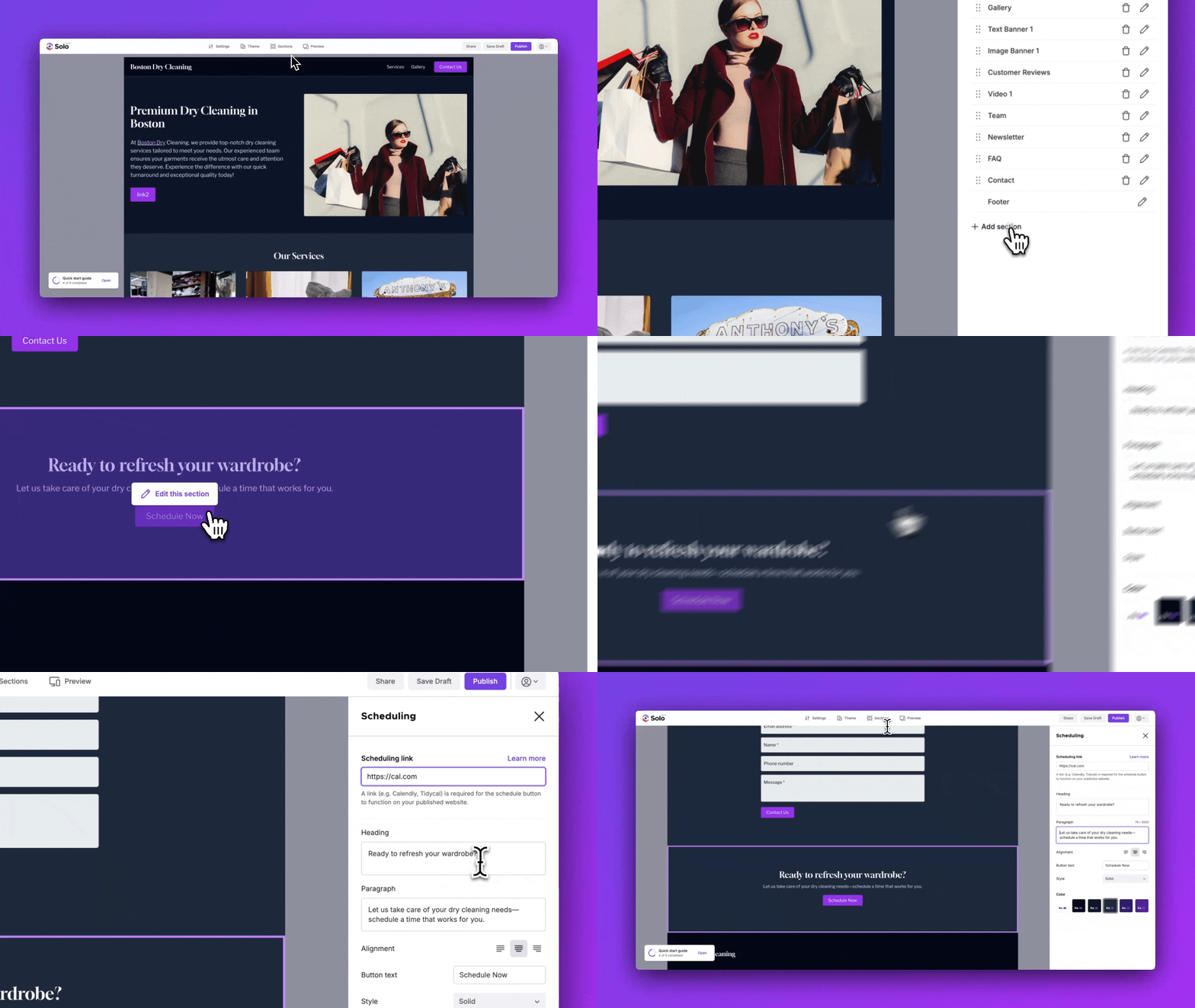
Option 2: Add a scheduling link via the Code Embed section
Use this if your tool (Calendly, Cal.com, Google Calendar, etc.) gives you an embed code (an iframe snippet) instead of a plain URL.
- Go to your scheduling tool and copy the embed code it provides
- Visit the designer
- In the top toolbar, click
Sections - In the Sections right sidebar, click
Add section - Double click the
Code Embedsection in the modal to add it to your website - In the designer area, scroll down to the Code Embed section and hover over it
- Click
Edit section - Paste your embed code into the field and save
If the calendar is not showing up after you save, check that your calendar is set to public in your scheduling tool's settings. Most embed calendars won't display if the calendar visibility is set to private.
Related Articles
Still have a question? Post to our Reddit group or email the team.