How can I duplicate a page or section?
Paid plan subscribers can duplicate a page or section on their Solo website from the designer.
Duplicating a page
-
Visit the designer
-
In the pages toolbar, click the pencil icon next to the page you want to duplicate.
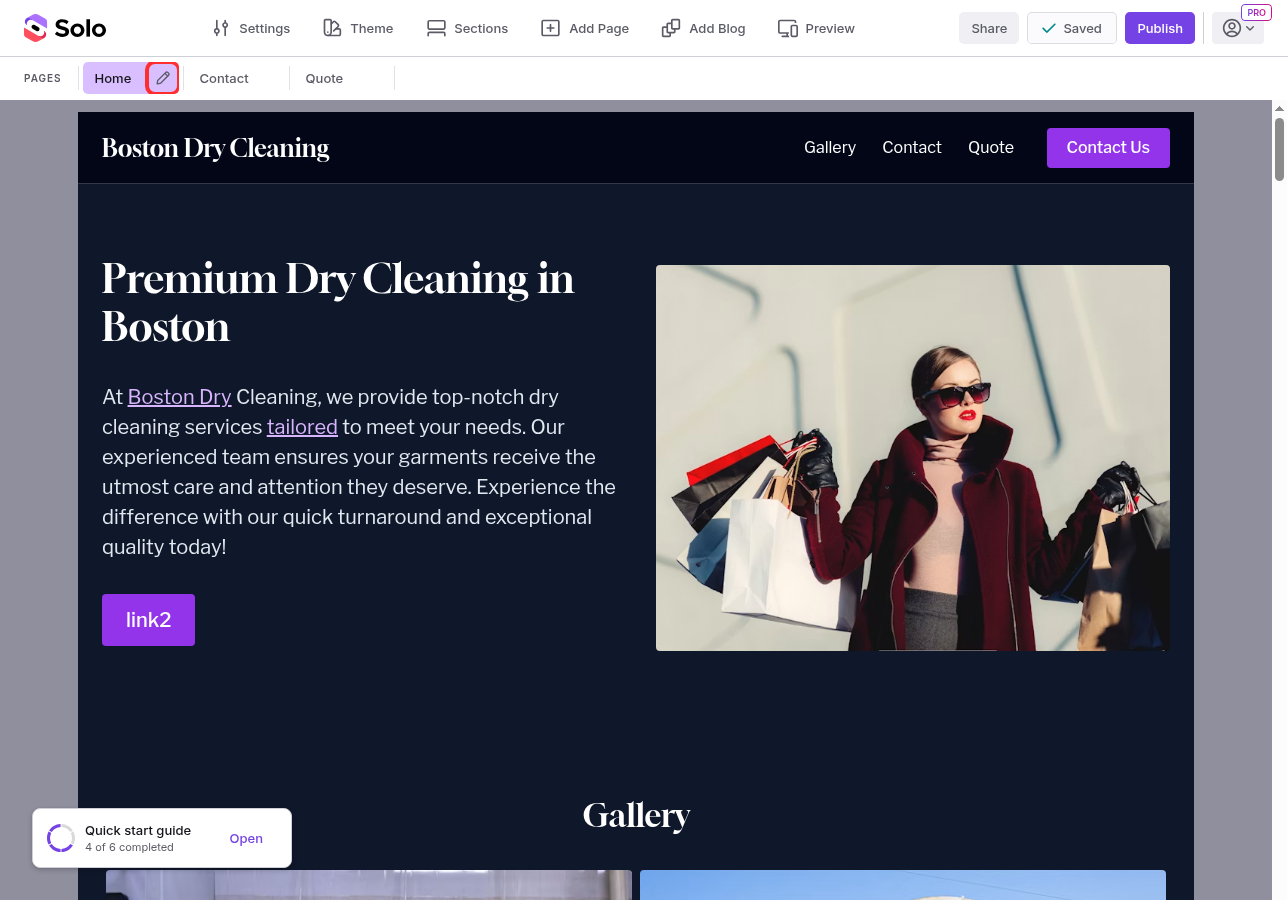
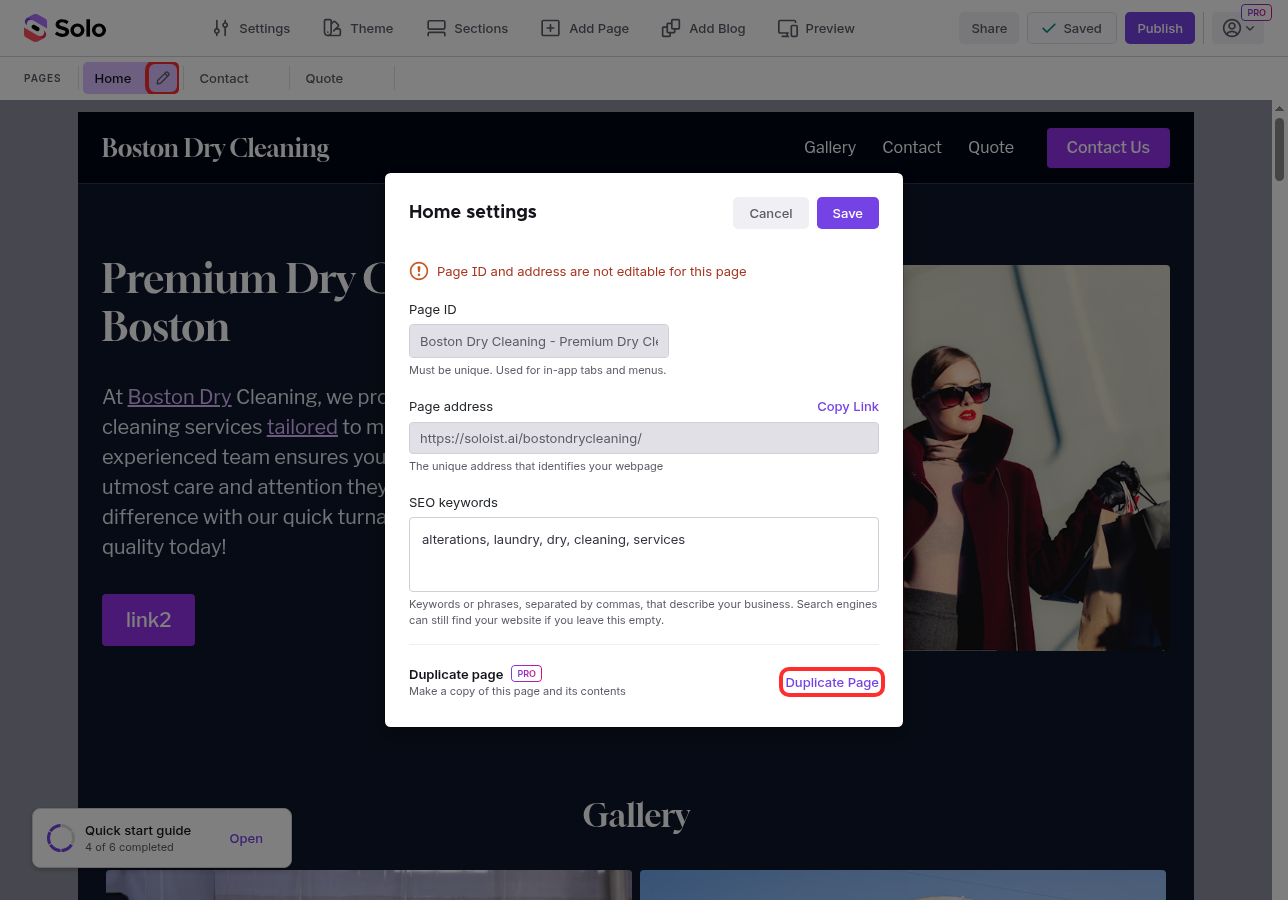
- In the Page settings modal, click
Duplicate Page
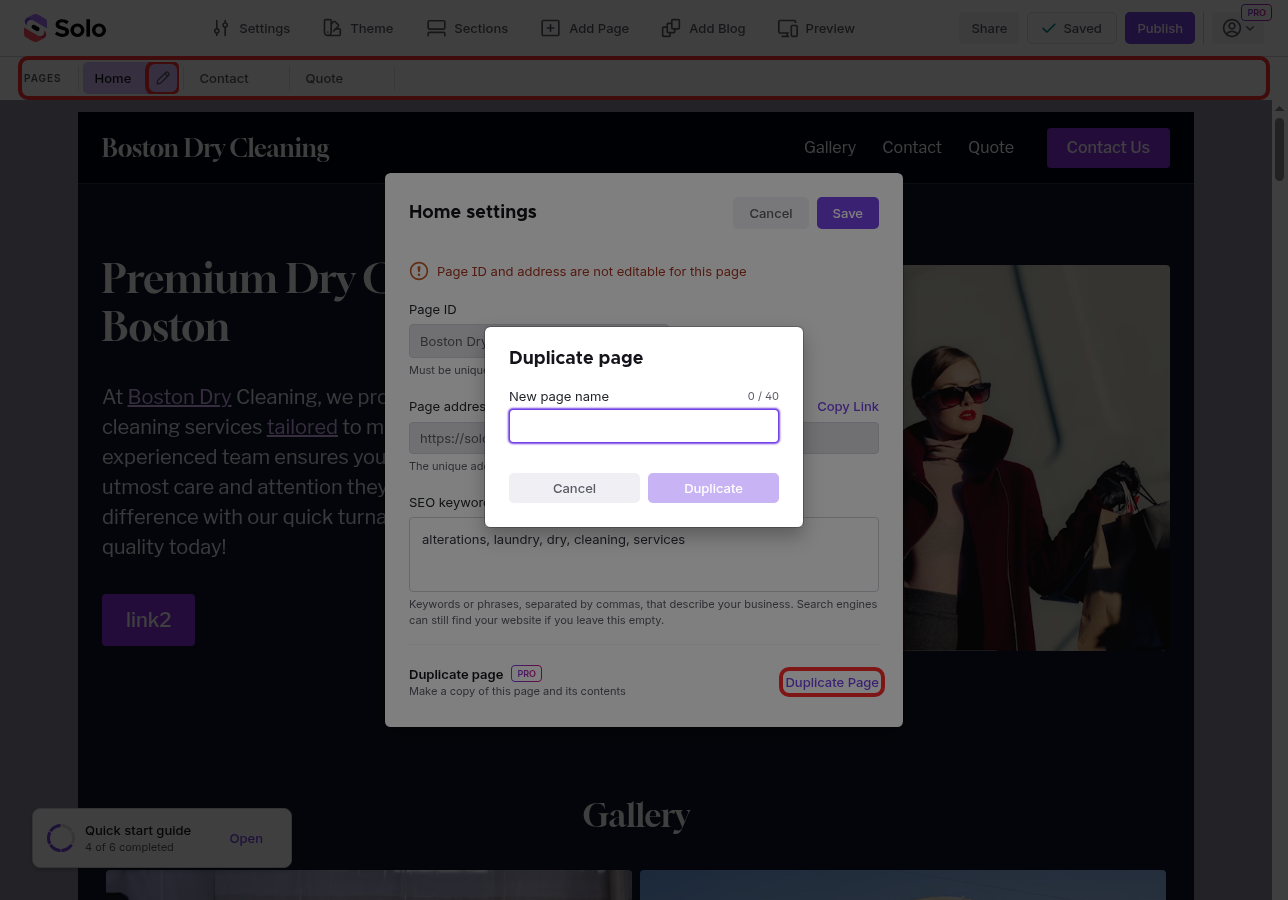
- The duplicated page appears as a new tab in the pages toolbar
Note: the Blog cannot be duplicated.
Duplicating a single page website
To duplicate a single page website, you will need to temporarily add a new page. Once added, the pages toolbar appears just below the top-toolbar. Click the pencil icon next to "Home" and follow the remaining steps described above. After completion, delete the temporarily added page by clicking the pencil icon next to its name in the pages toolbar and then click "Delete page" on the panel that appears.
Adding a nav link for a duplicated page
Duplicating a page does not automatically add a navigation link to the Header. To add a link, click on the website Header section to edit it. In the sidebar's Navigation links section, click "Add custom link" and select "Page/Section" from the dropdown menu. In the Link settings panel that appears, select the newly duplicated page in the "Page" dropdown, and add a name for it in the "Label" field. Click "Save" to add the link to the Header.Duplicating a section
-
Visit the designer
-
In the top toolbar, click
Sectionsto open the Sections sidebar -
Hover over the section you want to duplicate and click the 3-dot icon that appears next to the pencil icon. In the dropdown, click
Duplicate
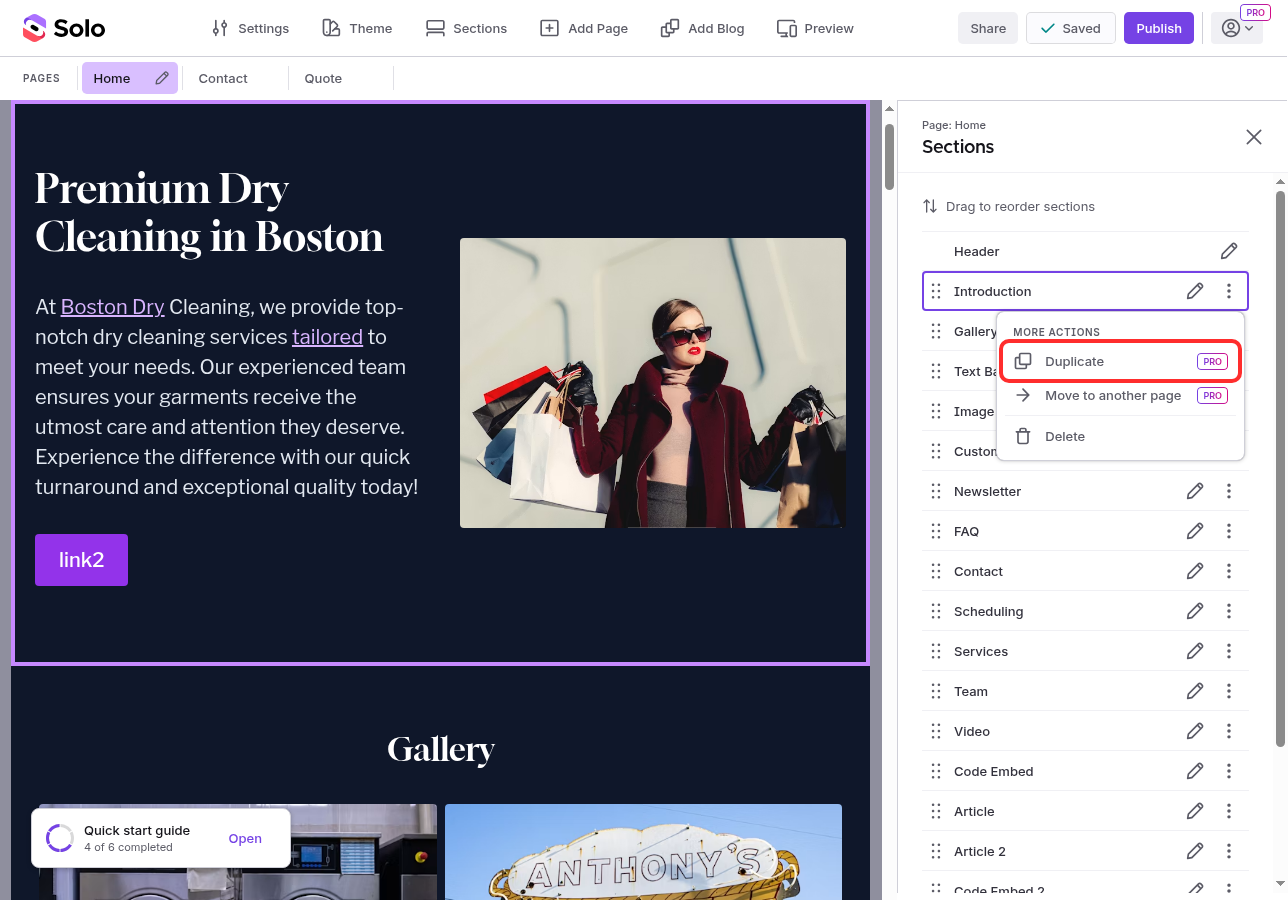
- The duplicate appears below the original section
Related Articles
Still have a question? Post to our Reddit group or email the team.