How to set the page title and add keywords for each page?
Setting your page title and keywords can help search engines understand what your website is about and can improve how you appear in search results.
Setting the page title
For your homepage:
- Go to the Designer.
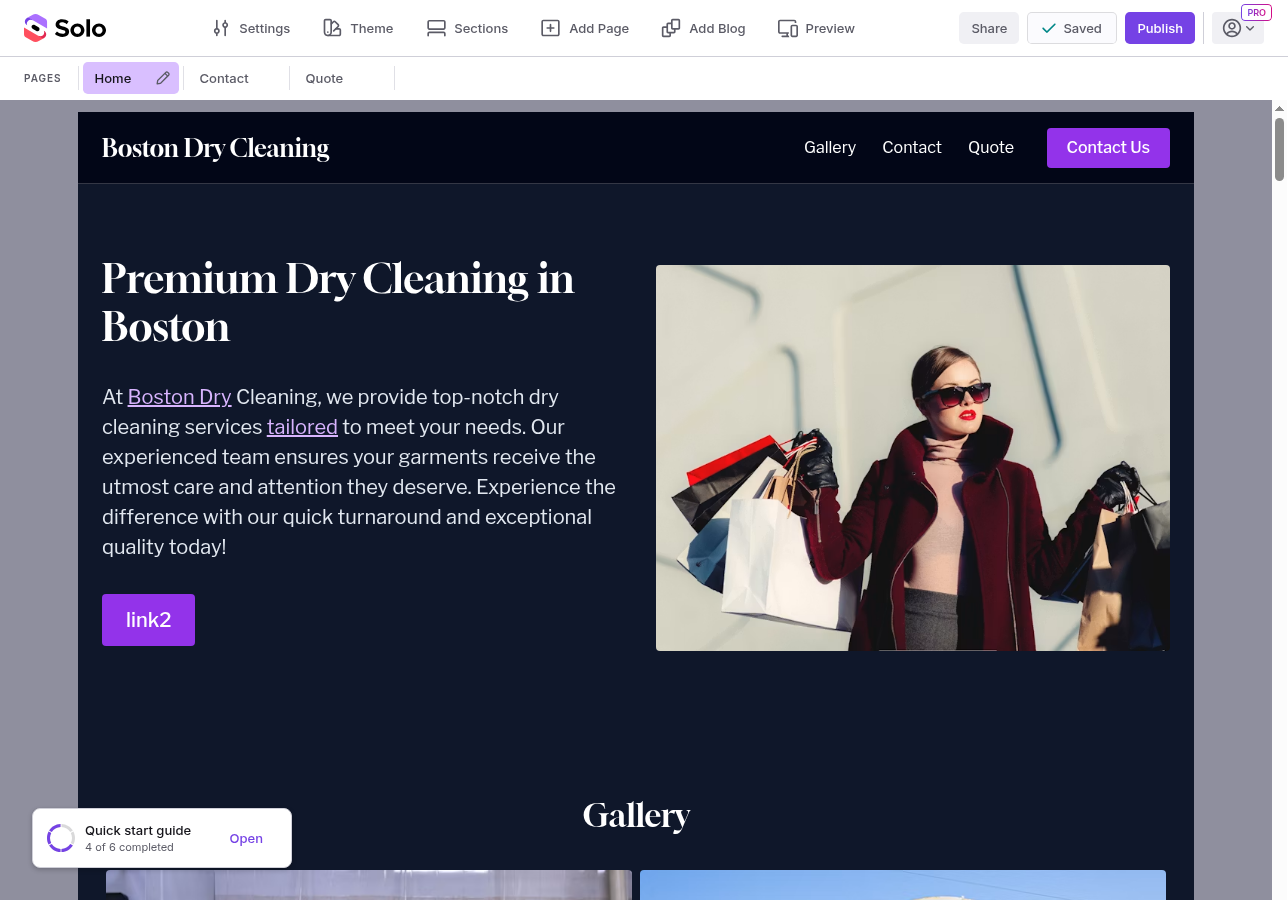
- Click Settings in the toolbar.
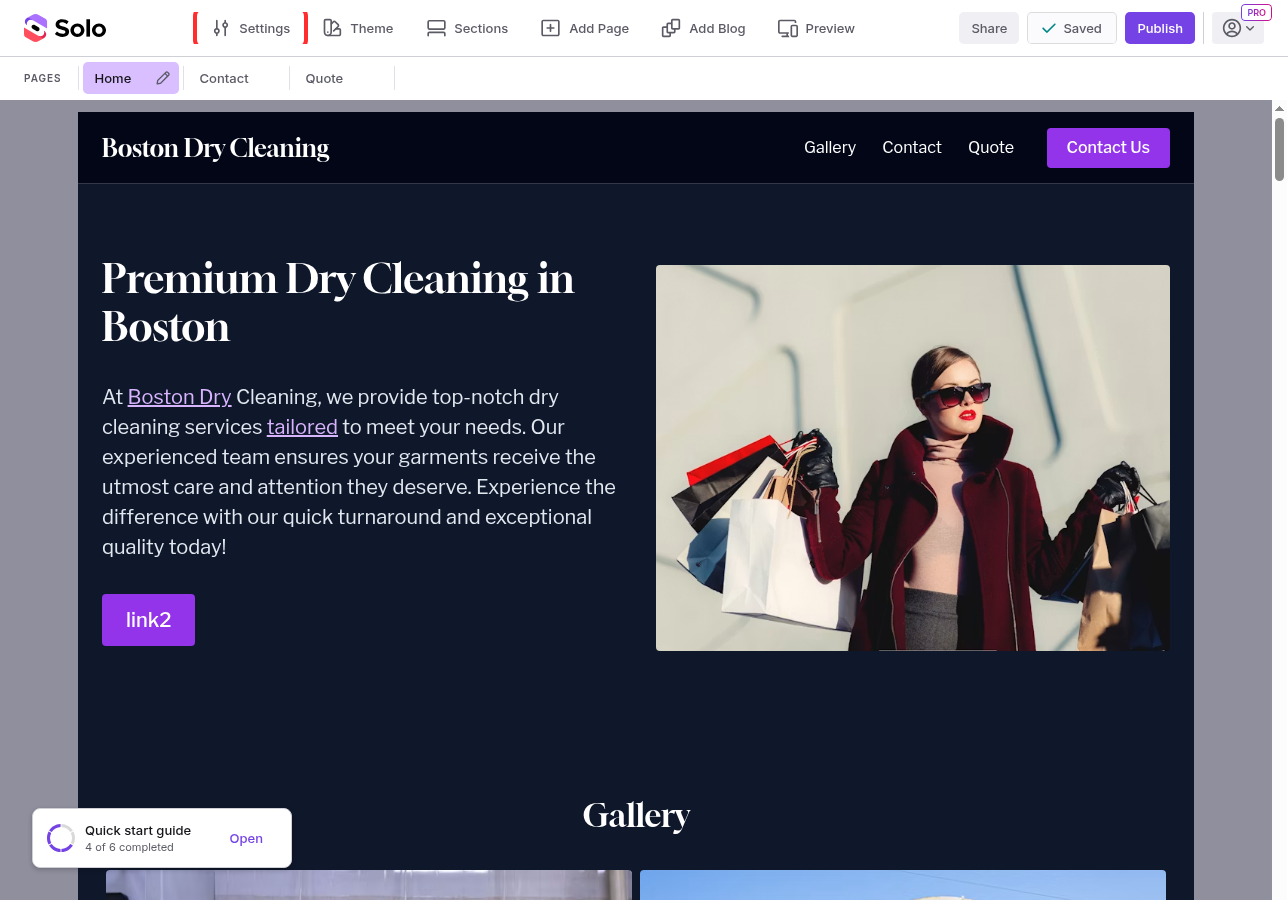
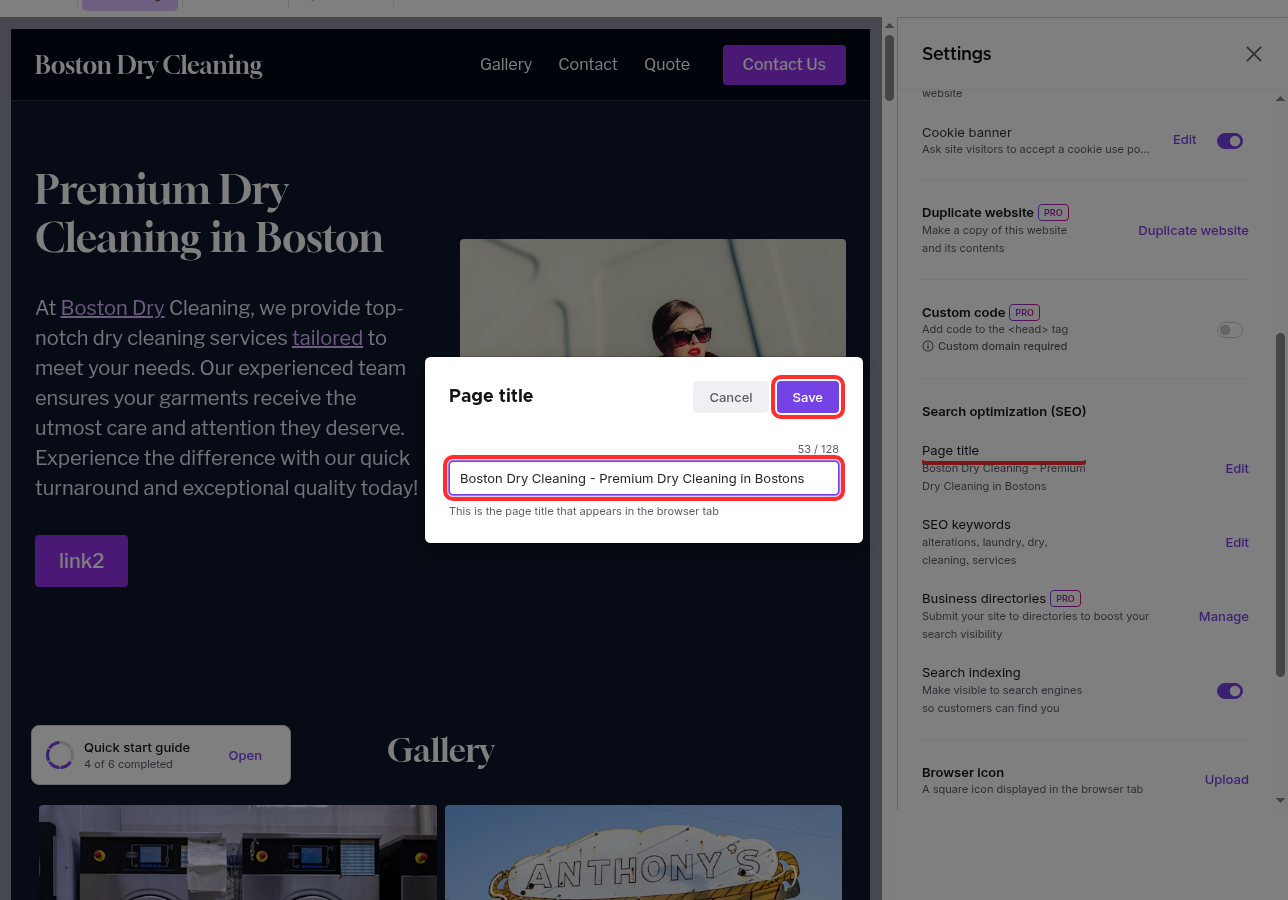
- In the Settings panel, scroll to the Search optimization (SEO) section and click Edit next to Page title.
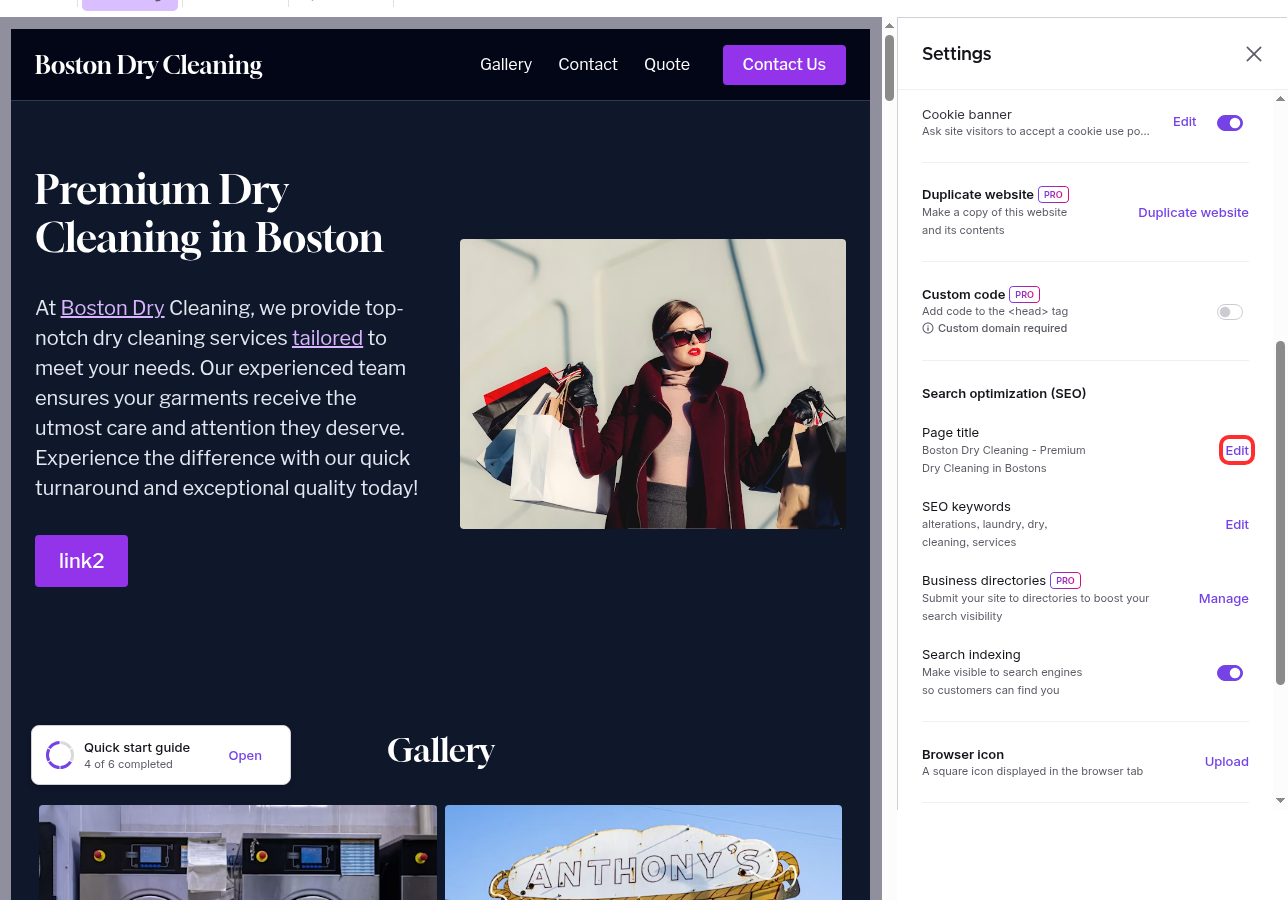
- Enter your page title. This is what appears in browser tabs and search engine results. Try to keep it under 60 characters.
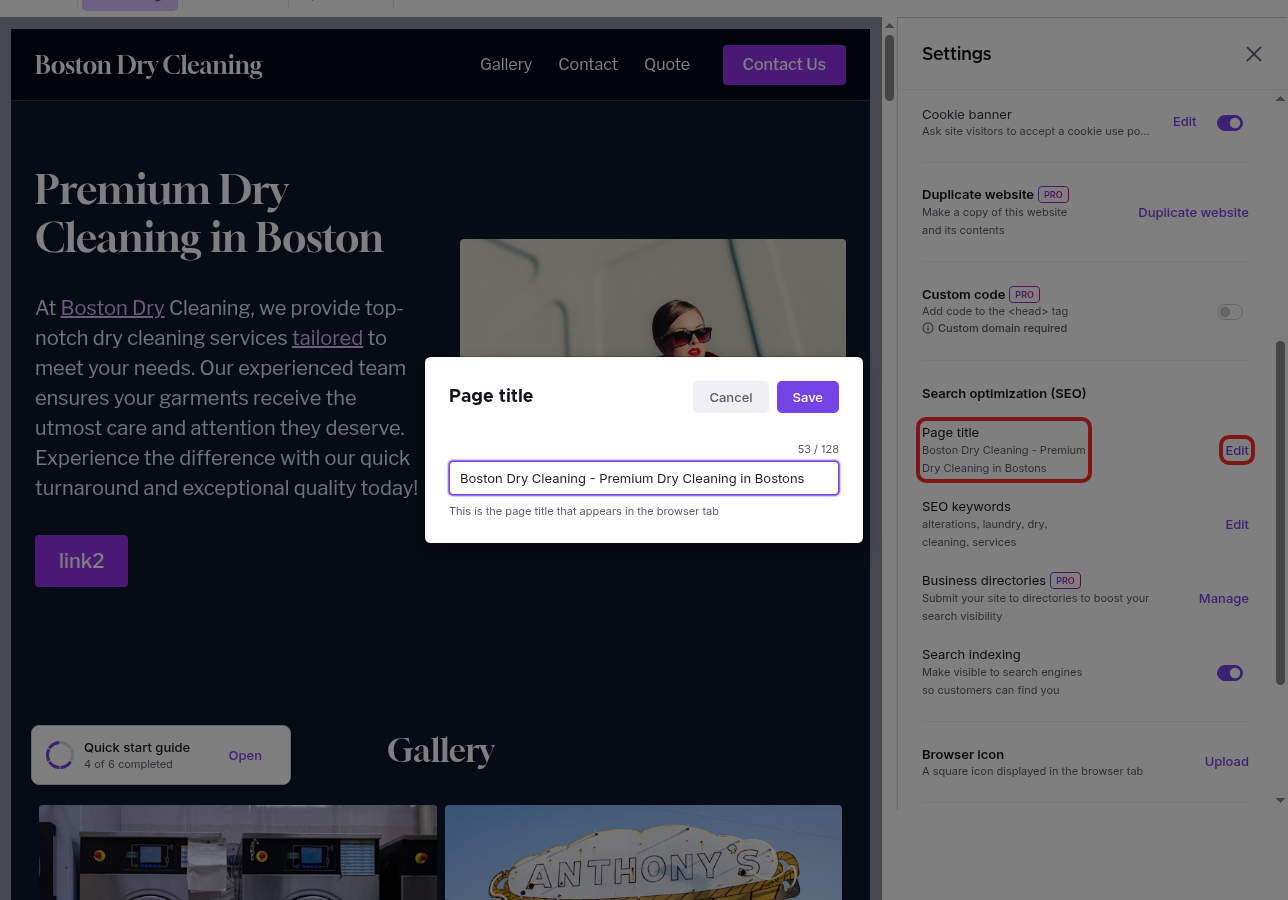
- Click Save and then Publish your site to apply your changes.
For other pages on your website:
- Go to the Designer.
- Click the pencil icon next to the page name in the left sidebar to open the page settings modal.
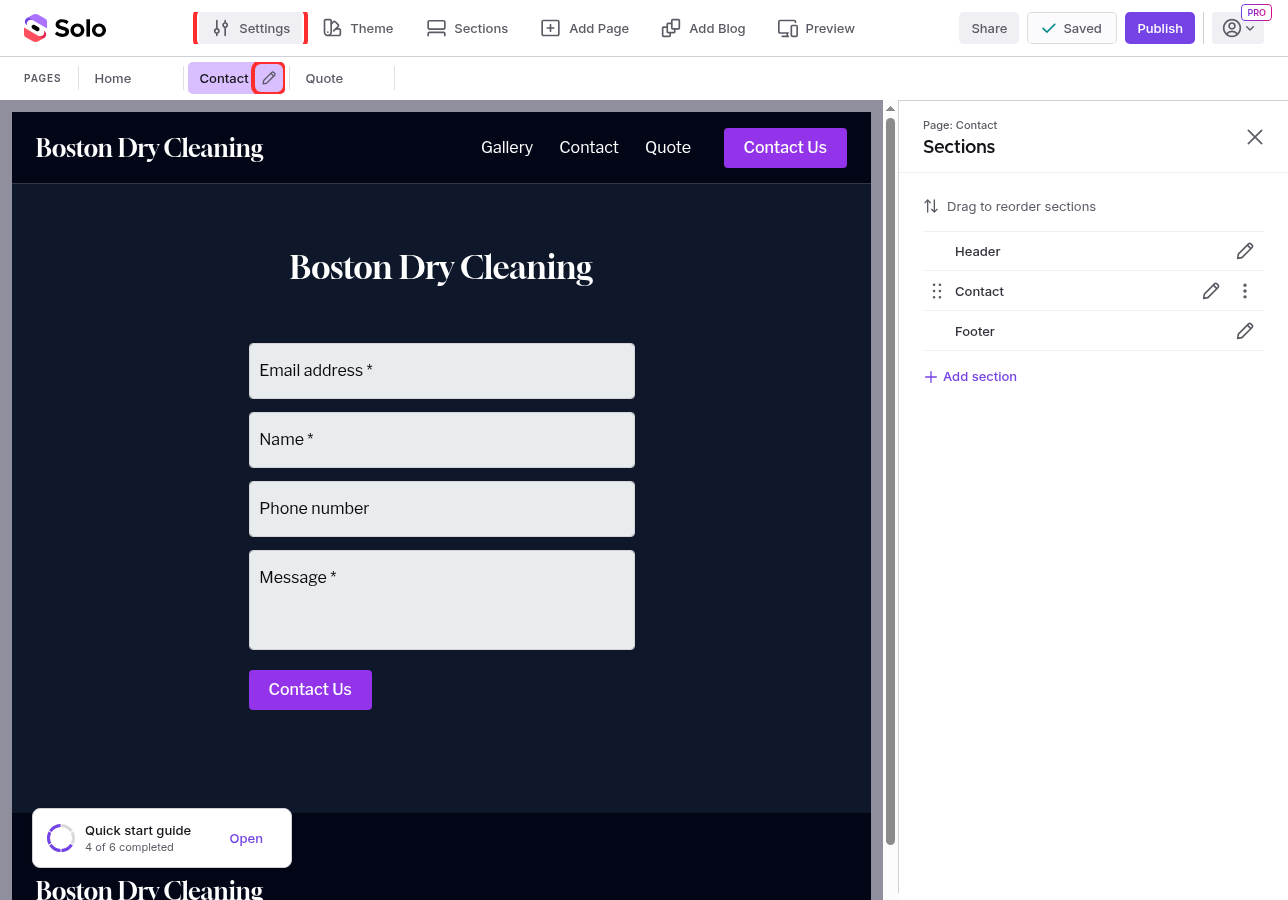
- Edit the page name. This will be used as the page title in search results.
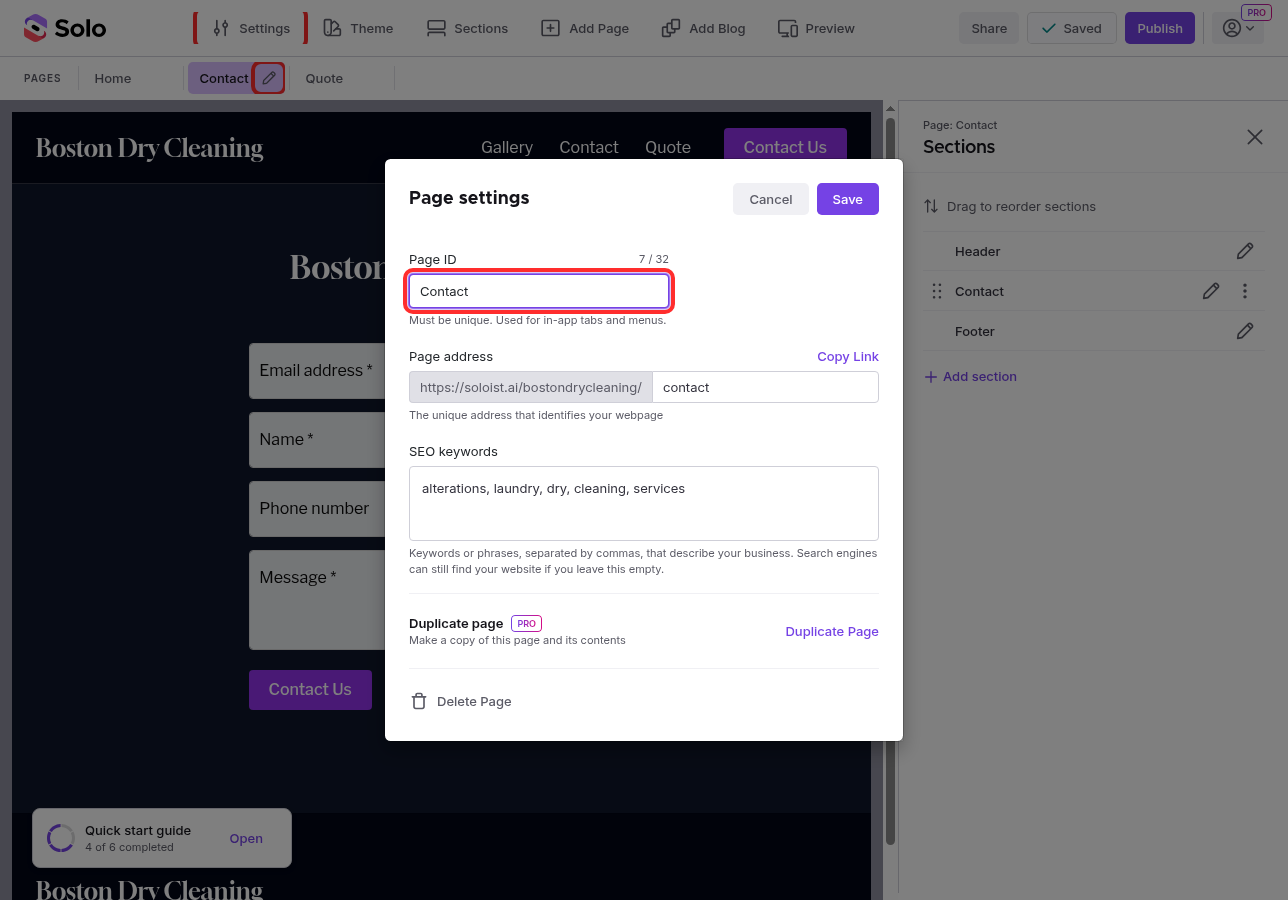
- Click Save and then Publish your site to apply your changes.

Setting SEO keywords
- Go to the Designer.
- Click Settings in the toolbar.
- In the Settings panel, scroll to the Search optimization (SEO) section and click Edit next to SEO keywords.
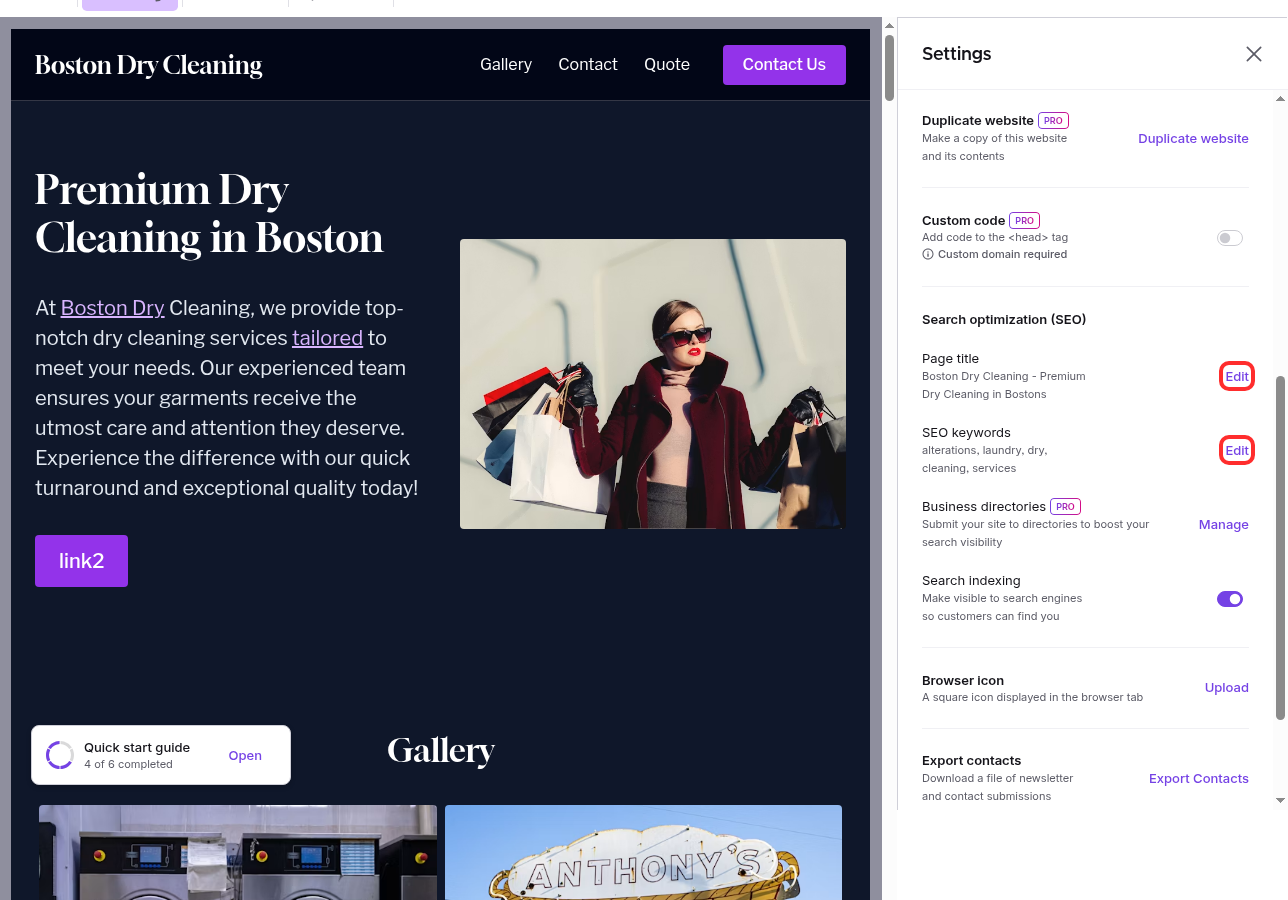
- Review and edit your SEO keywords for each page.
- Click Save and then Publish your site to apply your changes.
Best practices
- Keep titles concise — aim for under 60 characters so they display fully in search results.
- Use relevant keywords naturally — include terms your customers search for, but write for humans first.
- Make each page title unique — avoid using the same title across multiple pages.
- Be descriptive — a good title tells both visitors and search engines what the page is about.
Related Articles
Still have a question? Post to our Reddit group or email the team.