When to use image Fill vs. Fit?
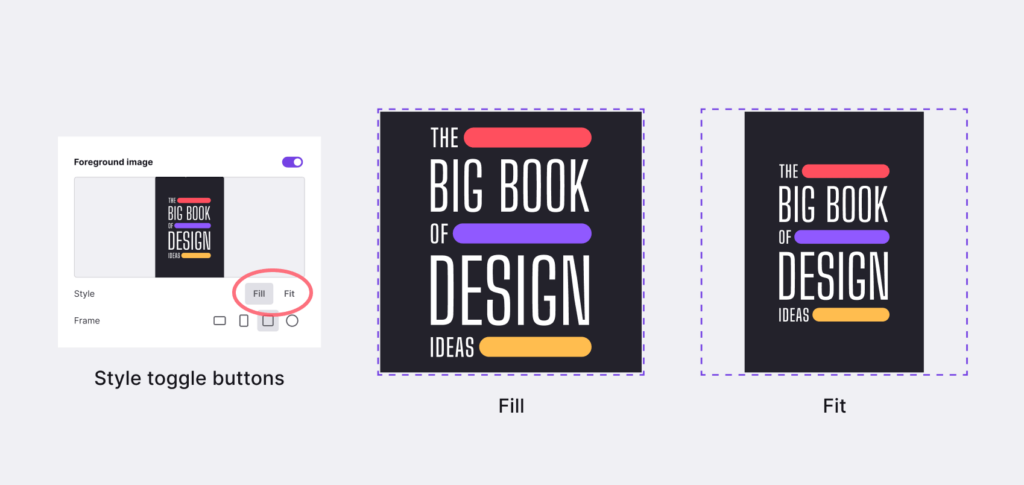
Solo offers two different display styles for foreground images in the Introduction and Text Banner sections: "Fit" and "Fill". Fill and Fit options are also available for inline images within article text. You can easily toggle between the two to see which best suits your particular image.
Fill
- Completely "Fills" the available space with image content
- Some parts of the original image may be cropped in the process (such as the top and bottom of the sample book cover in the illustration)
- Keep common image aspect ratios from section to section
- You can set the frames to: square, circle, portrait, landscape
- You can use the Shape feature to mask the image in fun, non-square shapes
- Fill is selected by default
Use Fill for:
- Stock images from Unsplash
- Uploaded photos that you want to display in a uniform size
- Images you want to control using the Frame or Shape feature
Fit
- Shows the entire original image
- Some empty spaces will show the website background
- Images with "Fit" selected cannot be cropped or have shapes applied
- Rectangular frame selections are still available and offer some control as to how your image appears in the layout
Use Fit for:
- Book covers, Mobile app mockups, Logos used in website sections
- Images with transparent backgrounds
- Any image where you need to see everything
Related Articles
Related Articles
Still have a question? Post to our Reddit group or email the team.