How can I upgrade to Solo Pro?
To upgrade to Solo Pro, please see the specific steps below.
Pro includes one free lifetime custom domain. See How to buy a domain with Solo.
A) Upgrade to Solo Pro from the pricing page
-
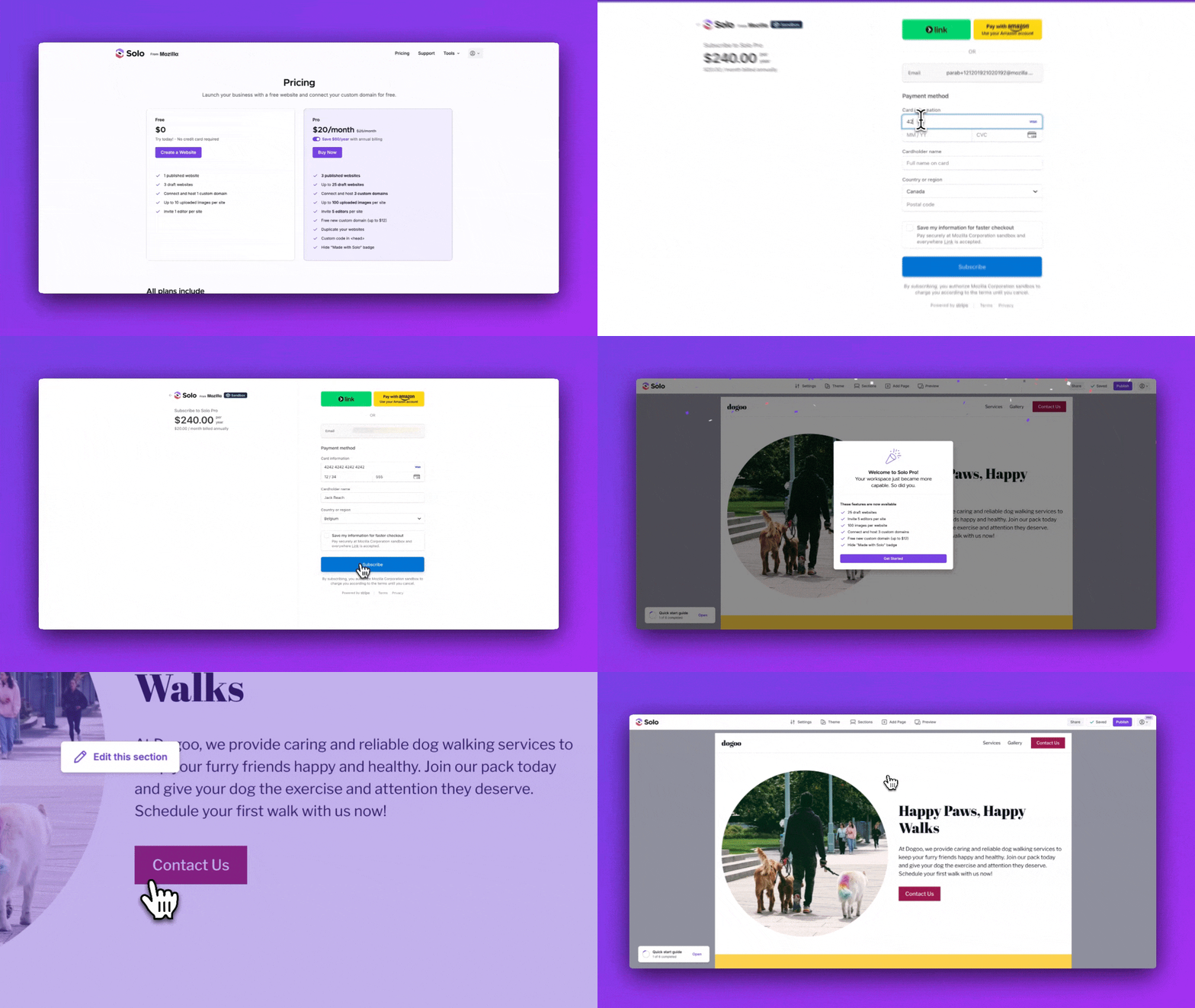
Visit the Pricing page. You will see three tiers: Free, Pro, and Grow.
-
See the benefits listed in the Pro or Grow column. Choose between monthly or annual billing.
-
Click
Buy Now -
If you are not signed in, you will need to sign-in or register before you can upgrade.
-
You will now be redirected to the Solo billing page. Please enter your details for your selected payment method. If you have a Stripe promotion code, you can apply it at checkout.
-
Click
Subscribe -
You'll now be redirected to your website designer and see a Welcome to Pro pop-up. You should also see a Pro badge at the top right on your account menu icon.
-
Congratulations, you are now a Solo Pro user!
B) Upgrade to Solo Pro from the website designer
-
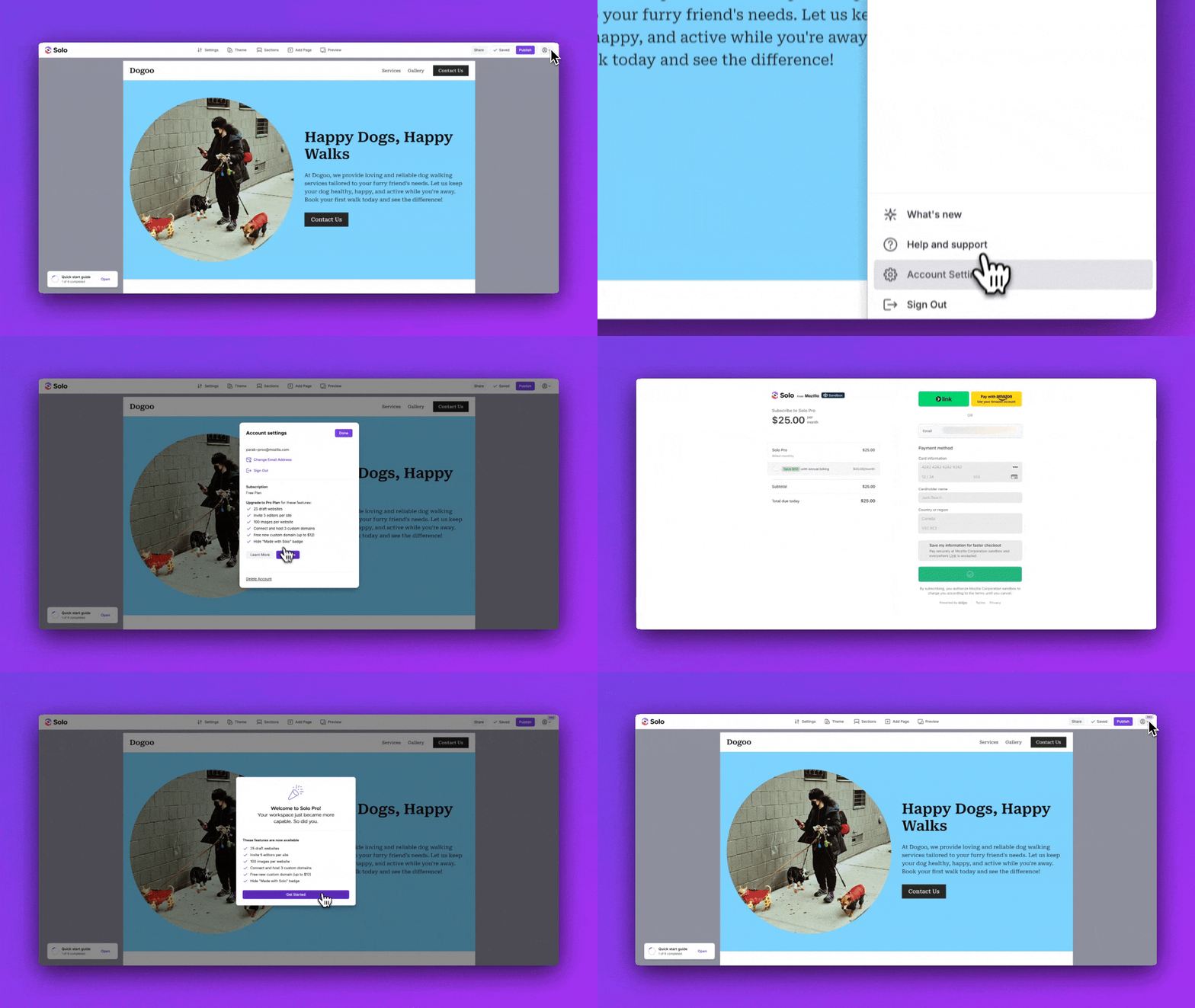
Visit the Designer
-
If you are not signed in, you will need to sign-in or register before you can upgrade
-
Click the account menu at the top right
-
In the account menu, click
Account Settings -
Click
Upgrade -
Enter your details for your selected payment method. If you have a Stripe promotion code, you can apply it at checkout.
-
Click
Subscribe -
You'll now be redirected to your website designer and see a Welcome to Pro pop-up window. You should also see a Pro badge at the top right on your account menu icon.
-
Congratulations, you are now a Solo Pro user!
Note: Since Solo AI Website Creator is a product from Mozilla, you will see a Mozilla logo on the billing checkout page.
Related Articles
Still have a question? Post to our Reddit group or email the team.